While there’s no shortage of image-processing software out there, most programs excel at just a few aspects of astrophotography processing, leaving users to hop between multiple packages.
This leads to complex – and increasingly costly – processing workflows, especially as more developers shift to subscription-based models.
ON1 Photo RAW 2025 brings together much of the functionality that’s typically spread across several well-known processing packages and combines it with cutting-edge AI-driven features into one piece of software – and all for a one-off purchase price.
More image processing
At the time of writing, the latest version was ON1 Photo RAW 2025.2, available on a free 30-day trial for curious imagers.
We set out to see whether it could genuinely handle an astrophotographer’s entire workflow from start to finish.

Getting started
The software downloaded easily, with no need to input payment details and so no risk of accidental charges.
While many of ON1’s features cater to artistic image creation, there are also plenty of helpful tools for astrophotography processing.
The interface is intuitive, especially if you’re used to other popular processing software, employing many of the same terms and conventions.
But even if you’re new to image processing, don’t worry: there’s plenty of guidance to get you started (more on that later).
The editing process is non-destructive, so your original image remains untouched no matter how many changes you make.
We also liked that there is a reset button, which makes it easy to start afresh if you need to.
ON1 claims to support raw files from over 800 camera models, as well as TIFF, JPEG, PSD, PSB, PNG, DNG and HEIC formats, and we met no issues with these.
It doesn’t support FITS files, however, so we had to convert our 32-bit DeepSkyStacker TIFFs to 16-bit TIFFs before they would open.
The Develop module is where you’ll find the basic processing tools.
Its Tone and Colour section applies linear histogram stretches (Levels), all controlled with sliders so you can see the effect on your image in real time.
To perform multiple iterations of a linear stretch, you need to duplicate the layer, apply your changes, then merge the layer down to reset the sliders.
You can also fine-tune colour temperature, tint and saturation here too. Sharpening and noise-reduction tools are included as well, and we found both delivered impressive results.

Exploring the effects
The Effects module includes other common functions, organised under the Filters menu.
Select ‘Add filter’ to access options such as curves, colour balance and channel mixer, along with creative presets and effects such as HDR, border effects, tilt-shift effect, and more.
There’s an option to only apply these changes to certain parts of your image, which is helpful if, for example, you want to exclude the foreground while enhancing detail in a nightscape sky.
Beyond the basic processing tools, there are numerous advanced tools, such as composite creation, batch processing, panorama stitching and even focus stacking.
ON1 has a suite of AI-driven and automated tools that can help to take some of the legwork out of your post-processing.
We found these tools took a minute or two to run, so a little patience is required.
The software also offers image cataloguing and organisation, and the ability to add keywords to your images, making it easy to search your library later.
We tested ON1 with a range of images – including the Sun, Moon, deep sky and the Milky Way – and with creating panoramas, and found it delivered pleasing results across the board.
The built-in ‘learning library’ of resources makes it easy to get to grips with the basic and advanced tools, which is helpful for beginners and experienced users alike.
ON1 can run as a plug-in for Photoshop or Lightroom, but there are so many features packed into this software that it could easily be used as a standalone solution.
The very reasonably priced one-time purchase model may appeal to those keen to avoid ongoing subscription costs, and the 30-day trial provides a risk-free way to explore what it offers.

Tack Sharp AI
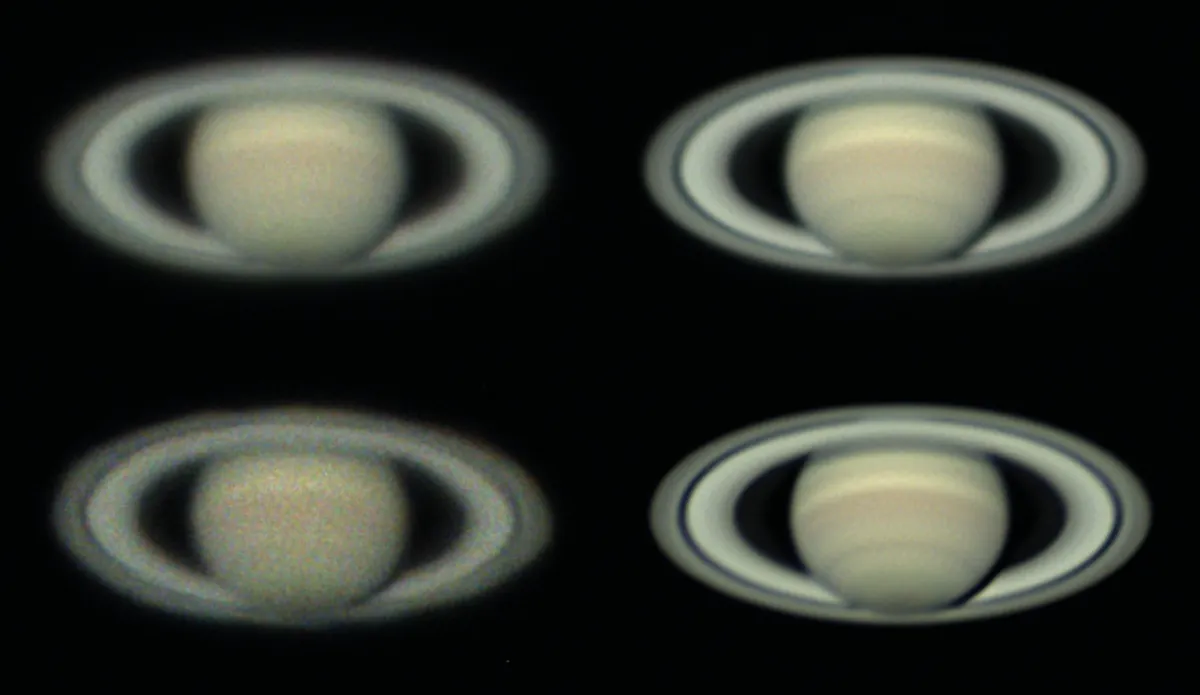
Tack Sharp AI is ON1’s tool for sharpening blurred or slightly out-of-focus images.
Located in the Noise & Sharpening section of the Develop module, it uses AI-driven technology to analyse and apply sharpening to your image, before generating a preview.
You can then drag a divider across your image to compare the ‘before’ (left side) and ‘after’ (right side) views.

If the results look over-sharpened, you can fine-tune the effect using the sliders to adjust deblurring and micro-sharpening.
This tool can take a while to run, so it’s worth checking the status bar to ensure the preview has fully loaded before making further adjustments.
Once you hit ‘Apply’, it may take a few minutes to finish sharpening.
We saw particularly impressive results with lunar crater images and sunspot photos captured in both white light and hydrogen-alpha.
Tack Sharp AI can also be used alongside the NoNoise AI tool to apply smoothing at the same time.
5 best features
Super Select AI

The Super Select AI tool speeds up creating composite images as you simply click on an area
to automatically select it. For example, we were able to quickly replace the blurred foreground of a stacked Milky Way image with the foreground from one of the single shots, producing a sharper result.
Learning library
ON1 has a vast library of over 1,000 excellent, clear and concise video tutorials. The Quick Start learning hub will teach you the basics, but hovering the mouse over each tool will pull up a ‘learn how’ link to the relevant video. There are also nearly 50 written guides available.
Panorama stitching

Stitching images together into a panorama is easy. Select your chosen images from the browser menu, then click the Panorama icon on the right-hand tool bar. Check the preview that is generated, then click the blue tick. The process works best if a lens distortion correction is applied to each image first.
Eraser tools

There are some excellent eraser tools in ON1. Perfect Eraser removes sensor dust or powerlines with one click, and Generative Eraser allows you to remove unwanted foreground objects. Simply draw over the object with your mouse and the software will remove it and fill the gap with natural-looking detail.
NoNoise AI

ON1’s NoNoise AI uses algorithms to analyse your image and figure out the optimum amount of noise reduction without losing detail. You can slide the divider side to side to see the results before hitting ‘Apply’. This tool may take a couple of minutes to run.
Key specs
- Price: £90.37 one-off; free 30-day trail
- Features: Editing, stitching, cataloguing
- Update: Includes new AI-powered features for masking, sharpening and denoising
- System requirements: (recommended) Windows 11 or MacOS 14 or above, eight-core Intel or AMD processor with 64-bit support, 16GB+ RAM, 6GB HD
- Developer: ON1
- www.on1.com
This review appeared in the November 2025 issue of BBC Sky at Night Magazine